Jump to common tools
Search Users, Flows, Object Manager, Permission Sets, Public Groups, Queues, Apex Classes, Debug Logs, Deployment Status, and more.
Move through Setup from a searchable Chrome side panel. Jump to users, flows, objects, permission sets, debug logs, deployment status, and your own saved pages without leaving the org behind.
 Salesforce shortcuts, one search away
The panel combines built-in shortcuts, your favorites, and searchable Salesforce data beside the tab you are working in.
Search Users, Flows, Object Manager, Permission Sets, Public Groups, Queues, Apex Classes, Debug Logs, Deployment Status, and more.
Star frequent links, customize their title and icon, or save any Salesforce page with its filters and URL details.
Build local, searchable lists for objects, flows, users, and discovered Setup menu items—separate for every org.
Index the Salesforce data you need, then search by label, API name, type, or status.
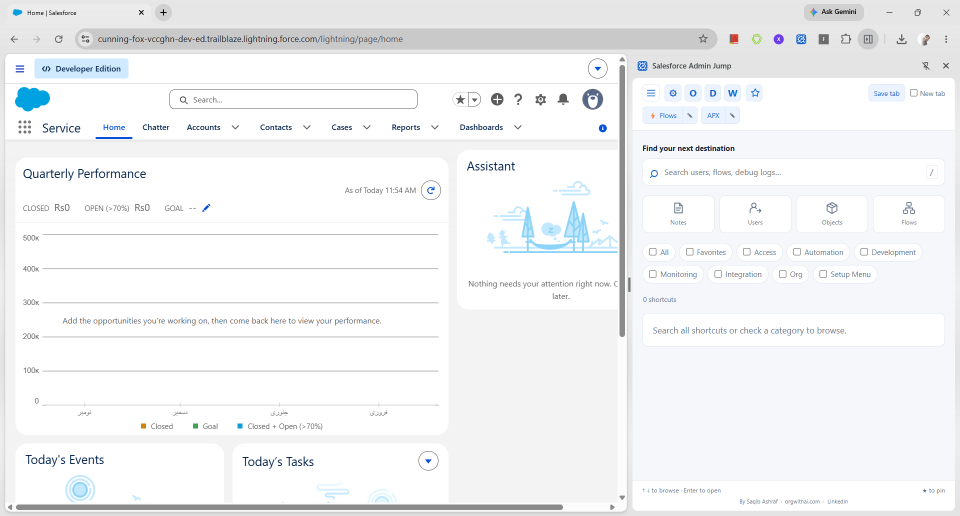
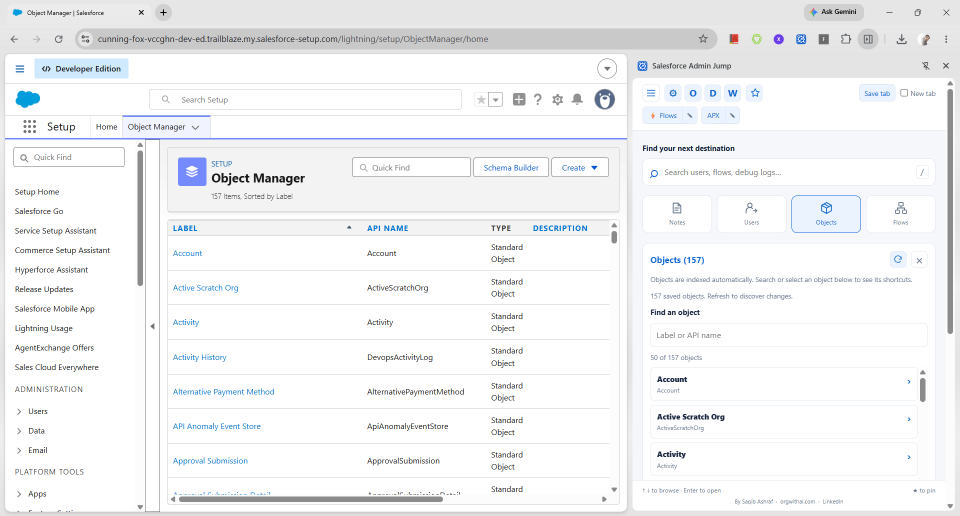
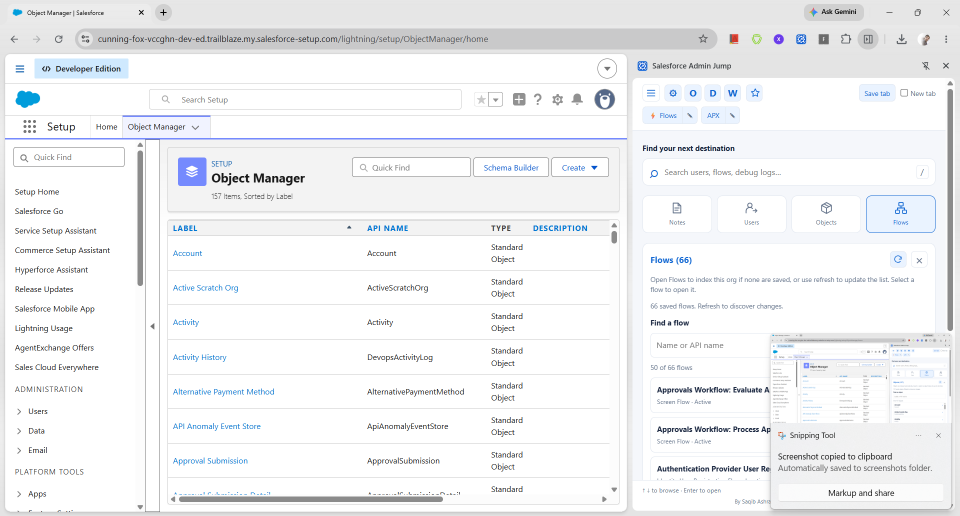
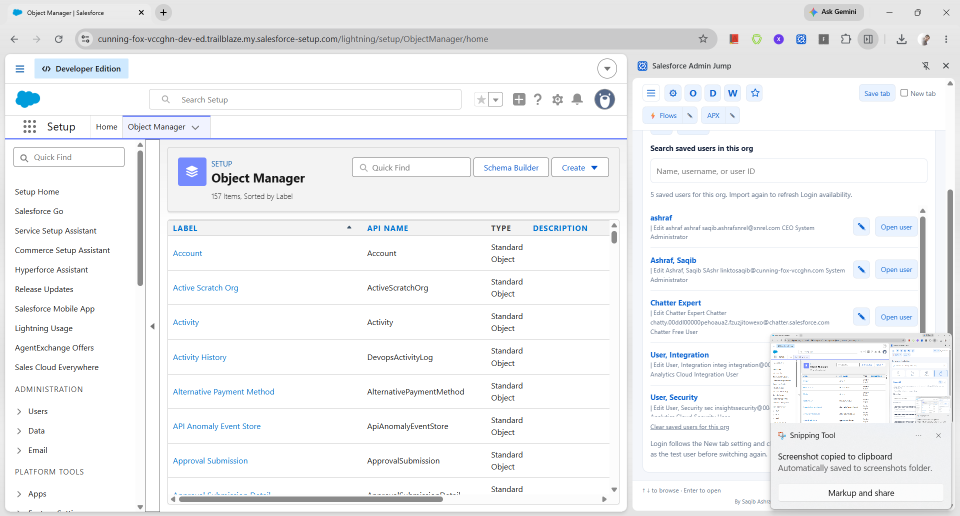
Admin Jump stays connected to the Salesforce tab and org where you opened it, while keeping recently used orgs close at hand.
Admin Jump uses your existing Salesforce session and permissions. It does not introduce a remote service into the path between you and Salesforce.
Favorites, preferences, saved org domains, saved pages, and imported indexes remain in Chrome.
No analytics, external services, remote code, or Salesforce API calls. Passwords, cookies, and session tokens are not stored.
The extension cannot grant Setup, object, Flow, user, or Login As permissions. Optional page access is requested only for indexing features.
Salesforce shares its login session across browser tabs. Using Login As changes that shared user context, including in newly opened tabs. Use Salesforce's logout action to return to your administrator session.
Add Salesforce Admin Jump 2.0 and put the next page, record, Flow, or user one search away.
Salesforce Admin Jump is an independent product and is not affiliated with, endorsed by, or sponsored by Salesforce. Created by Saqib Ashraf.